Why Move Client Documents From a Legacy DMS to SharePoint
Steven Duc Tran, CPA, CIA ·
Executive summary
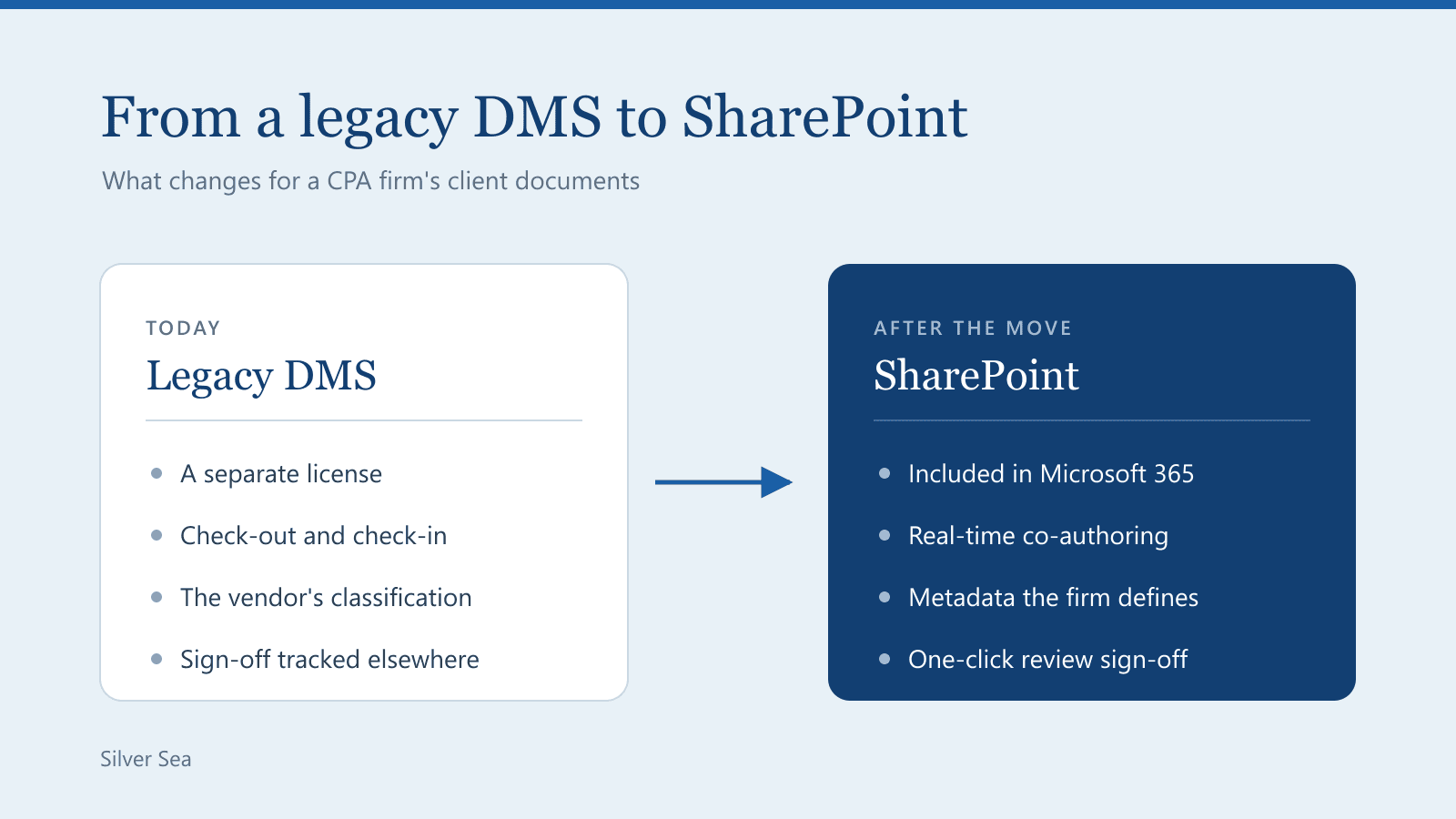
Many CPA firms keep client documents in a legacy document management system (DMS), usually the one that came with their tax and accounting suite. That is a separate license for a second document system. Most CPA firms already run on Microsoft 365, so they already have SharePoint, its storage and its document features at no extra license cost.
The case in brief:
- License elimination. A legacy DMS can easily cost $1,000 per user per year, and that license goes away. Client files sit in the firm's own Microsoft 365 tenant, where its other tools can reach them.
- Configurable to the firm's workflow. Metadata, review sign-offs, views and permissions are settings the firm controls and can change as its process changes.
- Real-time collaboration. Files open in desktop Excel and Adobe Acrobat and save straight back, with no check-out step. Several people can co-author an Excel workbook at once.
- Built-in security and recovery. Encryption, an audit log, version history and point-in-time restore come with the platform. Data loss prevention, retention policies and device access control need Microsoft 365 Business Premium or E3.
- A foundation for automation and AI. Folder provisioning, file naming, document AI and tax workpaper automation can all read from and write to the library.
This is a platform decision, not a file transfer.
A legacy DMS and SharePoint side by side
A legacy DMS does its core job. It stores client files with a classification scheme, version control and retention rules, and it integrates with the tax software. The two differ in licensing, in how files are edited, and in how far a firm can configure them.
| Consideration | Legacy DMS | SharePoint |
|---|---|---|
| Licensing | A separate license on top of Microsoft 365 | Included in Microsoft 365 |
| Editing and collaboration | Typically single-user editing, often with check-out and check-in | Desktop editing with real-time co-authoring |
| Configurability | Configurable within the vendor's design | The firm defines its own metadata, views, permissions and workflows |
| Review sign-off | Usually tracked in a separate workflow tool | One-click preparer, reviewer and final sign-off, stamped with name and date |
| Metadata and classification | The vendor's classification scheme | Existing classifications carried over, plus any attribute the firm wants to track |
| Automation and integration | Through the integrations the vendor offers | Power Automate, scripts and document AI on the firm's own files |
| Data location | The vendor's cloud or a firm-hosted server | The firm's own Microsoft 365 tenant |
The left column describes legacy systems in general terms. Products differ, so check each point against your own.
Six reasons to move
The first five come with Microsoft 365 or are set up through library configuration, with no custom development. The firm can change any of them later. Only the sixth involves custom development.
1. License elimination
Most CPA firms already run on Microsoft 365. A CPA Trendlines survey report found Office 365 dominant in accounting offices, with Google at 2 percent (CPA Trendlines, 2021).
SharePoint and OneDrive are included in Microsoft 365 Business Basic, Standard and Premium and in the E3 and E5 enterprise plans, so their storage and document features come at no extra license cost. A legacy DMS is licensed on top of that. In the firms Silver Sea works with, it can easily cost $1,000 per user per year, and that cost is eliminated once the migration is complete.
Storage is 1 TB plus 10 GB per license across the firm, and more can be bought. A library holds up to 30 million files and folders (SharePoint limits).
2. Configurable metadata, views and permissions
A SharePoint library is configured through metadata, views and permissions, and the firm can adjust each one as its workflow changes.
- Metadata the firm defines. Any attribute that matters to the firm becomes a column on the file, such as document type, tax year, engagement or sign-off status. A column can be made required and limited to a fixed list of values, so classification stays consistent. Files missing a required value are listed in the Files that need attention view (required information).
- Role-based permissions. Access is granted to security groups, not file by file (library permissions). A custom permission level can take away the right to delete, though SharePoint applies it to files and folders alike.
- Saved views. A flat view lists every file for a client across all years, with sign-off status alongside, and exports to Excel. Other views can filter on any metadata, such as files awaiting review.
3. Real-time collaboration and full-text search
- Desktop editing without check-out. Spreadsheets open in desktop Excel and PDFs in Adobe Acrobat, and saving writes back to the library. There is no download and re-upload, and no check-out before or check-in after. Opening PDFs this way relies on the OneDrive sync app, with Files On-Demand turned on (Open in app).
- Real-time co-authoring. Several people can work in one Excel workbook at once and see each other's changes within seconds (co-authoring).
- Full-text search. Search reads the text inside PDFs and Office documents, not just file names (parsed file types). Scanned PDFs need a text layer, or Microsoft's optional pay-as-you-go OCR service (OCR).
- File Explorer access. A OneDrive shortcut puts a client folder in File Explorer, and Files On-Demand keeps files online until opened (shortcuts, Files On-Demand).
4. Review sign-off and audit trail
Each file has a Sign off button. One click runs a Power Automate flow that stamps the signed-in user and the date and time (flows for a library).
The library carries three sign-off levels: Preparer, Reviewer and Final Review, each with a name and a date. The flow fills in both, so no one types initials, picks a date or signs as someone else. The trail stays with the file for peer review.
5. Security, compliance and recovery
| Capability | What the firm gets | Source |
|---|---|---|
| Encryption | Files are encrypted in transit and at rest. Each file is split into chunks, each with its own AES-256 key. | Data encryption |
| Audit log | On by default, including in Business Basic and Standard, with 180 days of history. It records who accessed, modified, downloaded or deleted a file. | Audit overview |
| Version history | Saved changes are kept as versions that can be opened or restored. | Versioning |
| Recycle bin | Deleted files are held for 93 days from the delete. | Recycle bin |
| Point-in-time restore | A site admin can roll the whole library back to any point in the last 30 days, undoing mass deletions or malware damage in one step. | Restore a library |
| Data loss prevention | Policies detect Social Security numbers and other sensitive data, then warn the user or block sharing outside the firm. Needs Business Premium or E3. | DLP |
| Device access control | Personal devices can be limited to web-only access, with no download, print or sync, or blocked. Needs Conditional Access, which comes with Business Premium and E3. | Unmanaged devices |
Plan requirements for data loss prevention and audit are from Microsoft's Purview service description, and for Conditional Access from its Entra licensing page.
6. Automation and AI
Once files sit in the firm's own tenant, Power Automate and scripts can work on them. Silver Sea builds and maintains these on top of the library, and each can be added when the firm is ready:
- Automated folder provisioning. Next year's folders for every client in one run.
- Automated file naming. Files are renamed to the firm's convention as they land, without relying on staff.
- Document AI. Related PDFs are combined and bookmarked for review.
- Tax workpaper automation. Client documents are read straight from the library to prepare the tax workbook.
Continuity for staff
Staff do not have to relearn where documents are. The library mirrors the structure they use today.
- Same client folders. Each client's folder is named the way it appears in the current system, with the client ID at the end.
- Same folder structure. Year folders and the Permanent file sit inside each client, as they do today.
- Same classification. The document classifications used today carry over as metadata on every file.
- Same desktop applications. Adobe Acrobat for PDFs and Excel for spreadsheets.
- File Explorer access. Active client folders can appear in File Explorer through a OneDrive shortcut.
Common questions
Isn't SharePoint just a shared drive that ends up disorganized?
It does when no one designs it. A designed library requires key metadata on every file, lists the files missing it, and gives every client the same folder structure.
Is SharePoint secure enough for client tax data?
Files are encrypted in transit and at rest, and the audit log records who opened, changed, downloaded or deleted each one. Policies can detect Social Security numbers and block sharing outside the firm, and personal devices can be limited or blocked. Those last two need Microsoft 365 Business Premium or E3.
How does SharePoint handle records retention?
Out of the box, saved changes are kept as versions and deleted files are held for 93 days. For longer protection, a Microsoft Purview retention policy keeps a copy of edited or deleted files (retention). Retention policies need Microsoft 365 Business Premium or E3. A scheduled backup is the other option, and it needs its own storage.
Will staff have to relearn everything?
No. The client folders, year folders, Permanent file and document classifications all match what they use today. Most of the firm keeps working in the legacy DMS until the cutover date, and a pilot group can start in SharePoint sooner.
What happens to the files already in the legacy DMS?
They move into the same client and year folders, with their classification carried over. The originals are kept in an archive folder.
What if someone deletes a client's files by mistake?
A deleted file or folder can be restored from the recycle bin for 93 days, and a site admin can roll the whole library back up to 30 days.
What if we want a different structure later?
The metadata, views and permissions are settings. Renaming or reorganizing folders afterward is a script, not a second migration.
How do clients send us documents?
Once an admin turns the feature on, a file request link lets a client upload into a folder without seeing its contents or needing a Microsoft account (file requests). Delivering returns and collecting signatures still needs a client-facing tool in front of SharePoint.
Planning considerations
SharePoint is not a turnkey accounting document system. These are the points to settle before committing.
- Design is required. SharePoint out of the box is an empty library. The benefits above come from the metadata, views, permissions and flows configured on it.
- Licensing tiers. Data loss prevention, retention policies and unmanaged device controls need Microsoft 365 Business Premium or E3. Business Basic and Standard don't include them (Purview service description).
- Records retention. A legacy DMS usually has retention rules built in. In SharePoint, deleted files are purged after 93 days unless a retention policy or backup is added.
- Folder protection. SharePoint applies the same rights to files and folders, so staff who can delete files can also delete a folder. Microsoft's support staff confirm there is no built-in way to separate the two (Microsoft Q&A). What can be done is narrower. Client folders can be made read-only while the year folders beneath stay editable, and a flow can restore a deleted folder from the recycle bin (SharePoint connector).
- Client portal. SharePoint replaces the document store, not the portal. If the legacy DMS comes with a client portal, that subscription can only go once the firm has another way to exchange files and signatures with clients.
- Tax software integration. A legacy DMS usually takes files straight from the tax software. After cutover, filing from the tax software into SharePoint needs a defined step. That step can be automated, as in this UltraTax CS example.
- Scanned documents. Scanned PDFs are searchable only with a text layer or Microsoft's optional pay-as-you-go OCR.
- Sync governance. Staff add shortcuts for active clients only. Microsoft recommends syncing no more than 300,000 files (SharePoint limits).
- One-time migration cost. Migration and setup are a project to weigh against the license cost eliminated each year.
Migration approach
Silver Sea handles the migration end to end. It configures the library, runs the initial migration and operates the daily sync until cutover. The transition is low risk: a pilot group can start working in SharePoint while the rest of the firm stays on the legacy DMS, and the firm sets the cutover date.
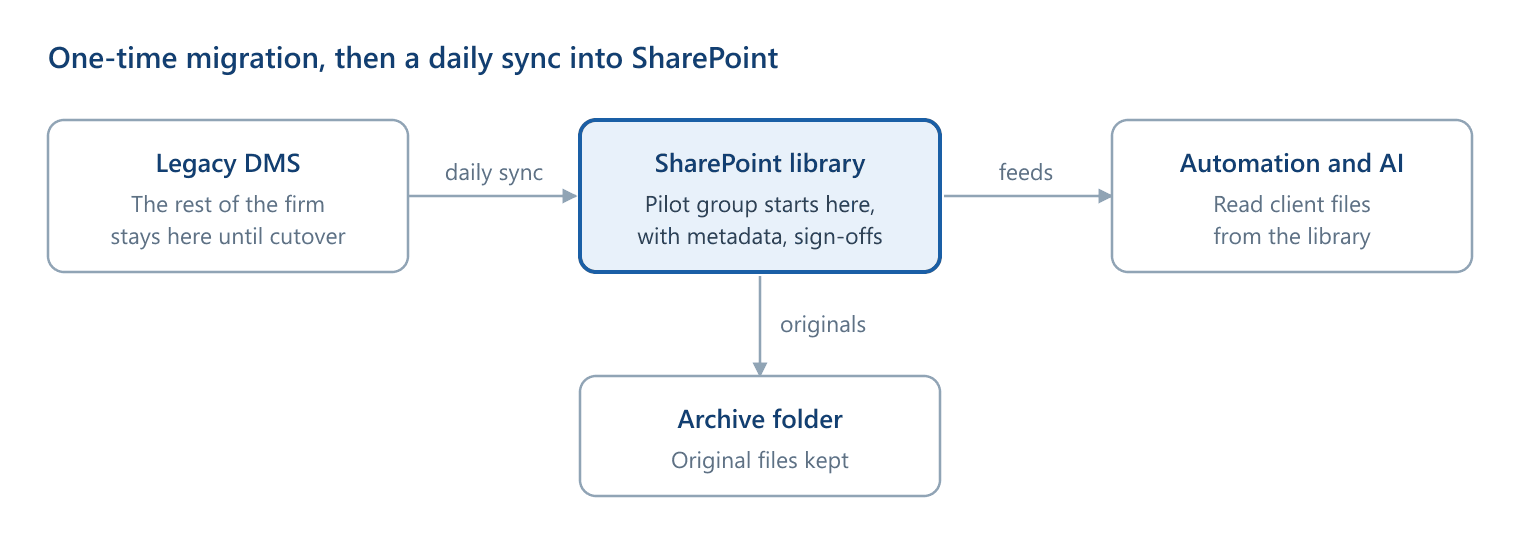
The sync runs one way, from the legacy DMS into SharePoint.
- Initial migration. Existing files are copied into SharePoint, most recent year first so automation can start working on them early. Older years and the Permanent file follow in the background.
- Daily incremental sync. New and changed files in the legacy DMS are copied into SharePoint each night, and the originals are kept in an archive folder.
- Pilot group. Selected users start working in SharePoint while the rest of the firm stays on the legacy DMS.
- Cutover. The firm sets the date everyone starts saving directly to SharePoint.
Nothing is locked in after migration. Renaming or reorganizing folders or metadata is a script once the files are in SharePoint.
Migration time depends on file volume.
Next steps
Four checks will show whether a migration is worth pursuing, and none requires outside help.
- Find what the firm pays each year for its legacy DMS and any client portal that comes with it.
- Look up how much storage the firm's documents use, and compare it with the Microsoft 365 allowance.
- Confirm which Microsoft 365 plan the firm is on, since that decides the security controls.
- List everything that files into the legacy DMS today, such as tax returns and portal uploads. Each needs a defined step after cutover.
If your firm is weighing this move, Silver Sea is happy to talk through what would work for you.
- SharePoint
- System migration
- Microsoft 365
- Power Platform
- Technology strategy